
NOTE: You will need to install the Microsoft Authenticator app and add it as a security method on your account prior to following the steps below. Follow the instructions through this QR code to learn how to add the Microsoft Authenticator as a security method. You may scan, click, or tap the QR code.
After you add the Microsoft Authenticator as a security option and verify it is working, follow the steps below to utilize the One-Time passcode. One-Time passcodes, once setup, can be used in airplane mode and require no signal.
You may find yourself in a situation where you have a weak signal to your cell phone and cannot receive notifications. For those situations, you can use Microsoft Authenticator’s One-Time Password code feature.
To do that, when prompted to approve a sign in request, choose “I can’t use my Microsoft Authenticator app right now.”
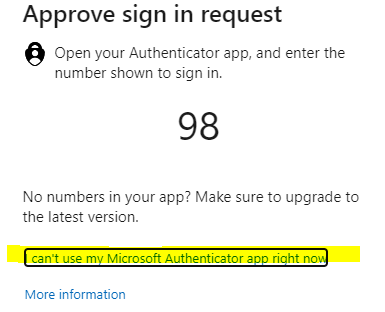
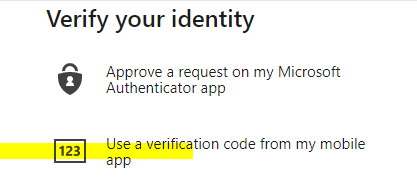
Now choose “Use verification code from my mobile app”:
Now launch the Microsoft Authenticator app on your mobile device and choose “No, Its not me”:

When prompted to “Report suspicious activity?”, Choose Cancel:

Your phone may flash a Denied message. This is perfectly ok.
Now tap your account:

Locate the one-time password code:
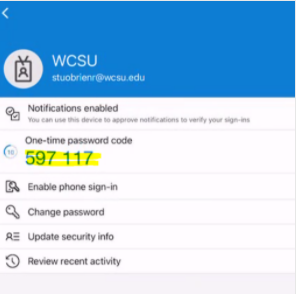
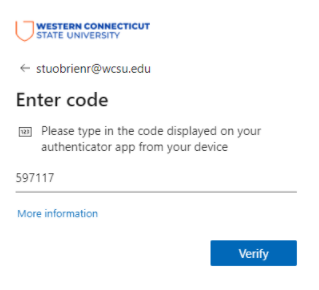
Enter that code into the prompt that is on your browser from earlier and click verify:
You will now be brought to your Inbox.
Keep in mind, the One-Time Code is NOT your password, you must enter it on the enter code screen shown above. If you enter it on the password screen, you will not gain access.
Please contact the service desk at 203-837-8467 if you need assistance.