
Phishing Email – You Did Not Give Out Credentials (Username / Password)
Step 1: With the Email selected.
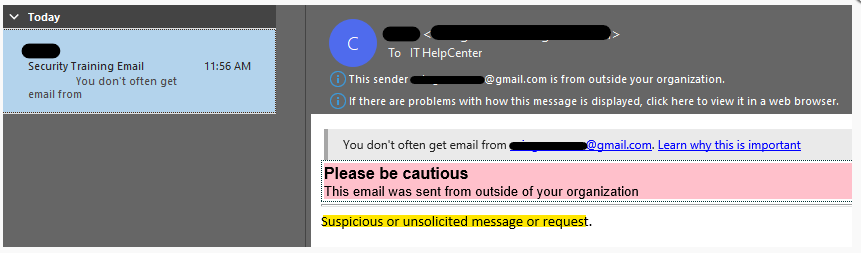
Step 2: At the Top-Right hand corner, select Phish Alert Report.
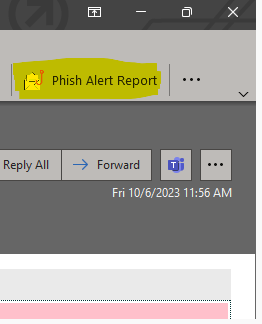
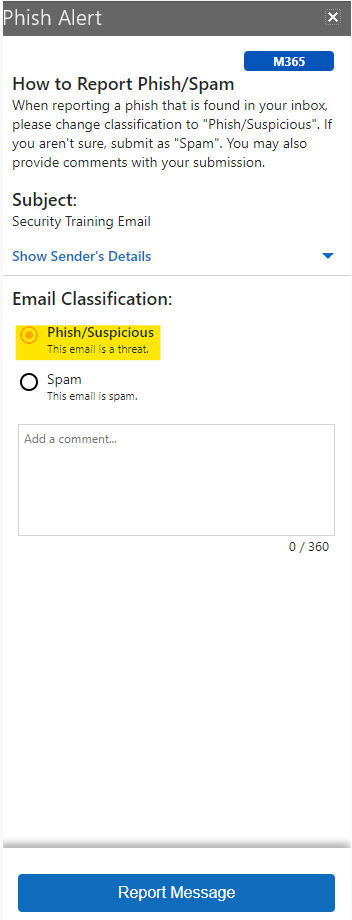
Step 3: Under Email Classification, keep option as default: Phish/Suspicious
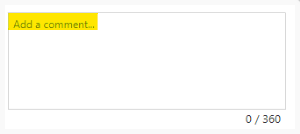
Step 4: Add in any comments that may assist the Security Officer.
Step 5: Report Message.
Report Phishing / Spam through Web Mail
- Open the email that you would like to report.
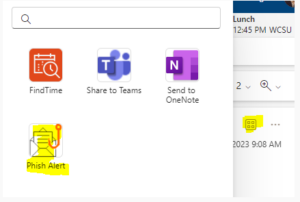
- Click the apps button at the top-right corner of the phishing email to reveal the phishing alert button:
3. From the drop-down menu that opens, click Phish Alert
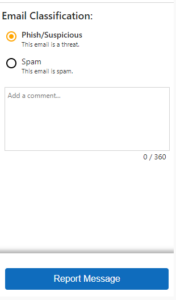
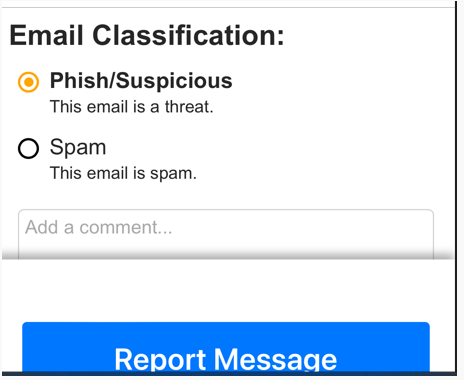
4. In the prompt that opens, choose Phish/Suspicious or Spam, enter any comments that would be helpful for our security officer, and then click the blue Report Message button:
Report Phishing / Spam through Outlook Mobile Application
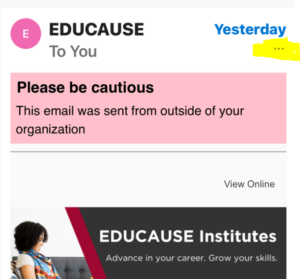
- On the Phishing email, click the 3 dots to the right under the date:
2. Click on the Phish Alert button:
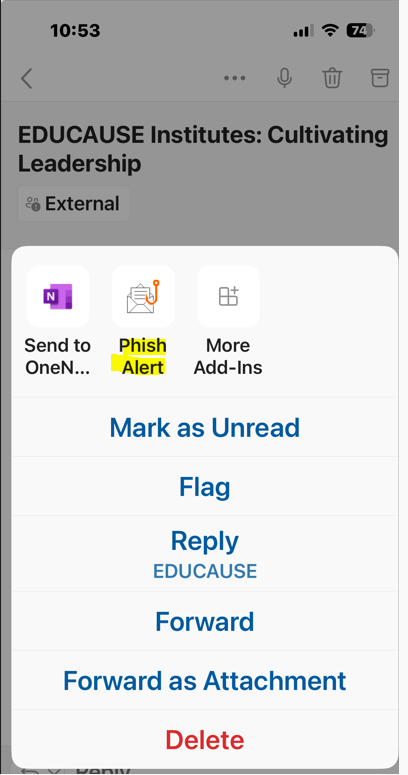
3. Choose Phish/Suspicious or Spam, add any comments that would be helpful for our security officer, and then click the blue “Report Message” button:
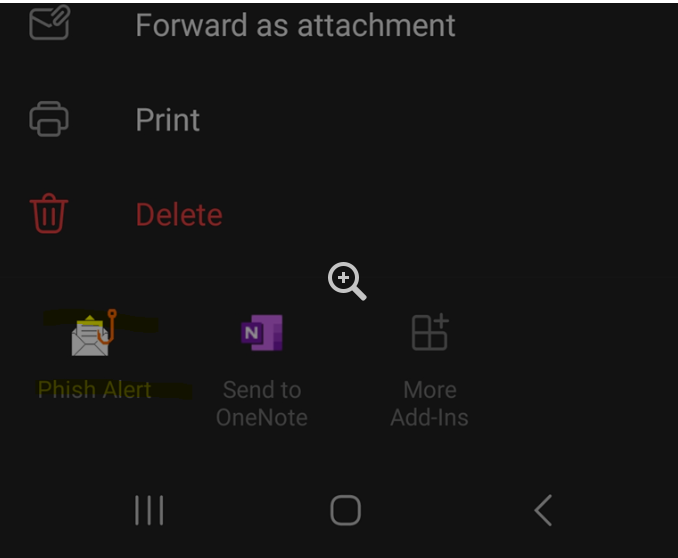
Note: On an android device, after clicking the 3 dots on the email message, the Phishing alert button may appear on the bottom of the screen:
Phishing Email – You Gave Your Credentials Out (Username / Password)
- Immediately reset your WCSU password here: https://wcsu.edu/password
- Follow the steps outlined above to report the phishing email to our security team.
- Call the IT+I Service Desk at 203-837-8467 so your email access can be restored if it has been disabled as a result of your account being compromised.
- Never use your old password again because it has been compromised.
- Immediately change your password on any other site that you may be using that password on.