
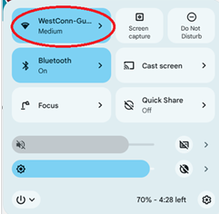
In order to connect a Chromebook to eduroam, click on the wireless icon in the bottom right corner:

Then click on the wireless network choice window on the next screen:
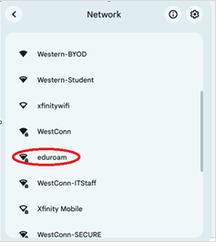
Choose “eduroam” from the list of available networks:
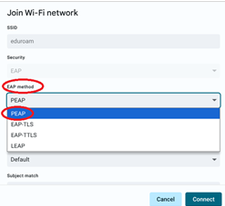
In the “Join Wi-Fi Network” dialog box, choose “PEAP” in the “EAP method” drop-down menu:
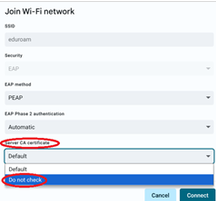
Choose “Do not check” in the “Server CA certificate” drop-down menu:
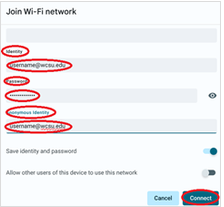
Scroll down and enter your username (with the domain @wcsu.edu) in the “Identity” field, type your password in the “Password” field, enter your username again in the “Anonymous identity” field, and then click “Connect”:
You will then be connected to the Internet via eduroam (which can be used at thousands of institutions around the country and world).