NOTE: Users of university-owned and managed MacBooks only: Please contact the Service Desk at 203-837-8467 or via email at requestit@wcsu.edu to schedule an appointment with a User Services technician to configure your device for eduroam connectivity.
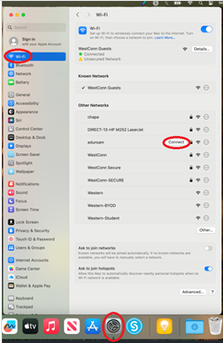
In order to connect a MacBook to eduroam, open the System Settings app, Choose “Wi-Fi”, then highlight “eduroam” under the Other Networks list, and click the “Connect” button:
You will be presented with a window to enter your Account Name (email address with domain) and Password. Leave the “Remember this information” option enabled, and then click “OK”: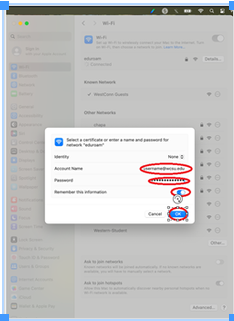
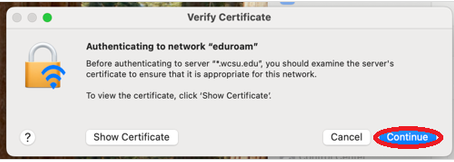
You will be presented with a “Verify Certificate” window. Click “Continue” or press the Enter key to explicitly Trust the WCSU certificate:
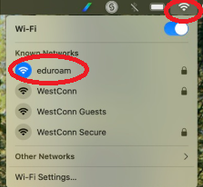
At that point, you will be connected to eduroam. In the future, you will not have to go through these steps. You can join eduroam by clicking on the Wi-Fi icon in the top right corner of the MacBook screen and choosing “eduroam”: