
If your Windows10 laptop is having an authentication issue when connecting to eduroam or WestConn, please add the wireless networks to your device manually by following the steps below:
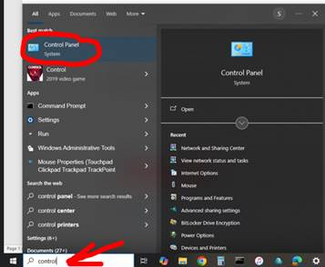
Open the Control Panel by typing “control” into the Search bar and then clicking on Control Panel as the Best match:
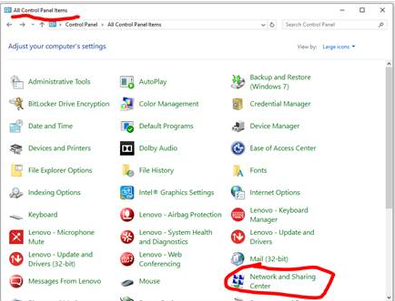
Once the Control Panel is open, click on the Network and Sharing Center option:
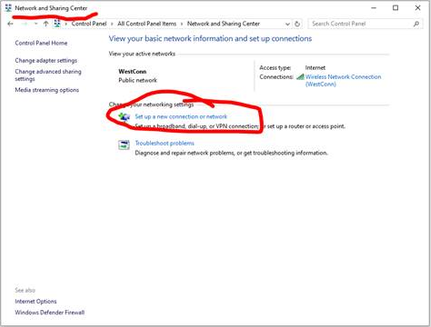
When the Network Center is open, choose the “Set up a new connection or network” option:
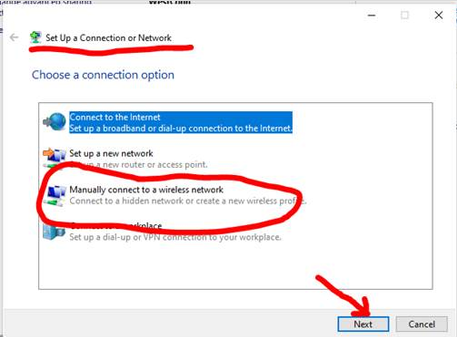
Then choose the “Manually connect to a wireless network” option and click Next:
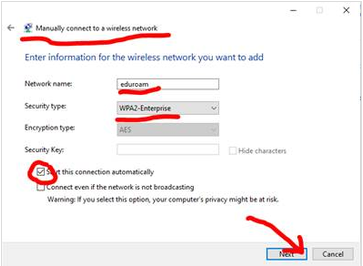
Enter the network name (which will be either eduroam or WestConn), set the Security Type to WPA2-Enterprise, and then click Next:
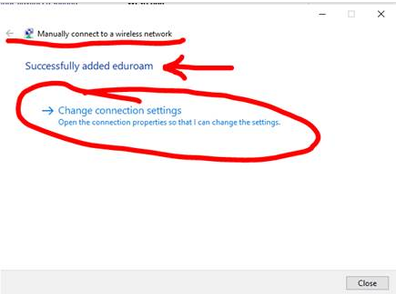
At this point, the new network will be added to the known networks list. However, there are two more settings which must be adjusted. Choose the “Change connection settings” option:
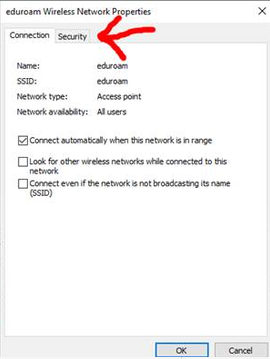
 When the Wireless Network Properties window opens, choose the Security tab:
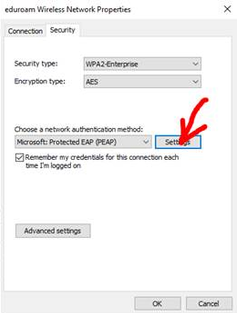
Under the Security tab, click the network authentication method Settings button:
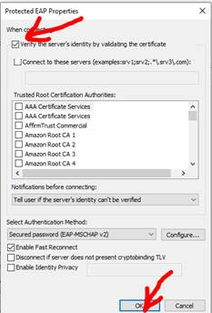
In the Protected EAP Properties window, UNCHECK the “Verify the server’s identity by validating the certificate” checkbox and then choose OK:
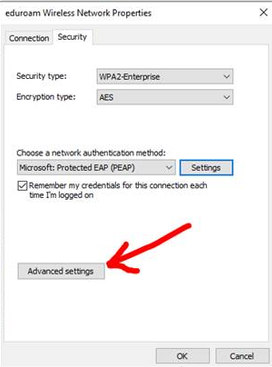
In the Wireless Network Properties window, choose Advanced settings:
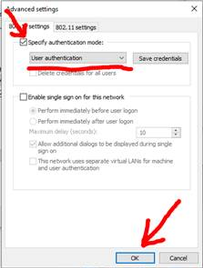
In the Advanced settings window, CHECK the box to Specify authentication mode, choose “User authentication” from the drop-down menu, and click OK:
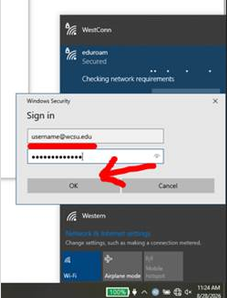
Finally, choose eduroam (or WestConn) from the available wireless networks list, enter your username and password (the same combination that is used for email login), and click OK. One very important point: when connecting to eduroam, you must use username@wcsu.edu. For WestConn, you only need to enter the username. The password will be the same in both instances:
The laptop will then connect to the chosen network. The settings will be remembered after connecting to a different network and coming back to this one, even if the laptop is rebooted.