
Students may authorize others, such as a parent or an employer, to view and pay their bill online. The student must create a unique login name and password for each authorized payer they want to create. Once an Authorized Payer is created in EZpay, they can view your account and make payments. Please follow the steps below to create an Authorized Payer:
1) Go to https://ssb-prod.ec.wcsu.edu, click on Secure Login and type in your University credentials.
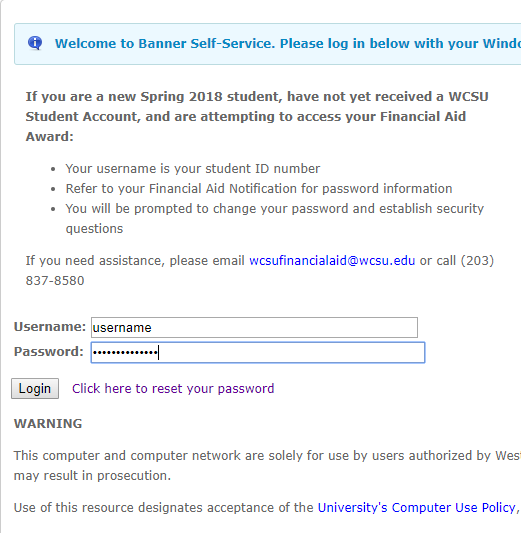
2) Click More… to expand all options and then click CONNectCash and EZPay.
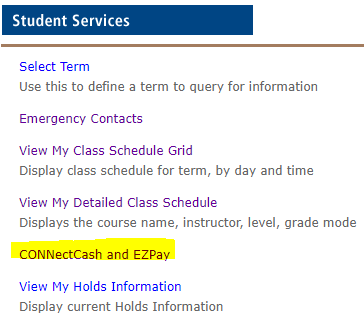
3) On the right column, click Authorized Users.
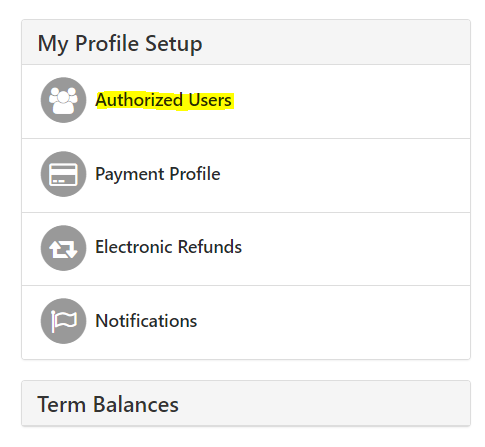
4) Click Add Authorized User.
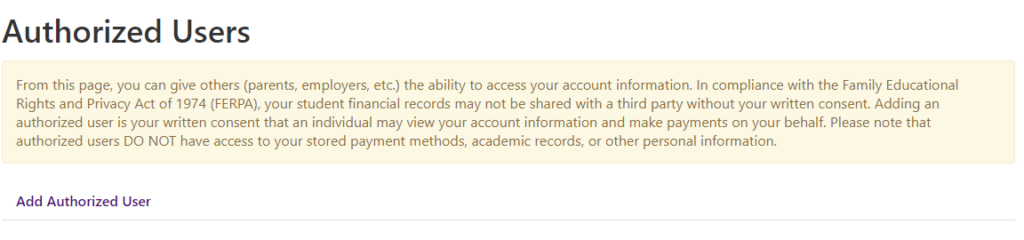
5) Type in the authorized user’s email address in the yellow box and then click Continue.
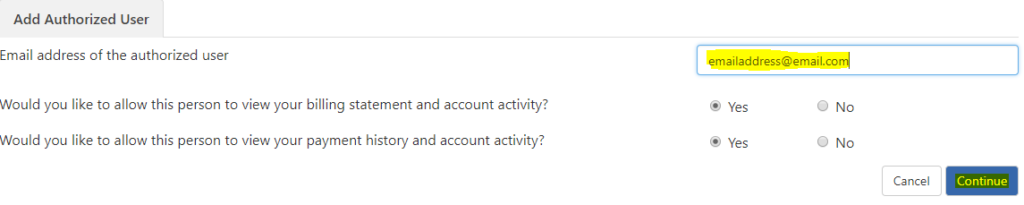
6) Make sure the information you entered is correct, agree to the terms and conditions and then click Continue.
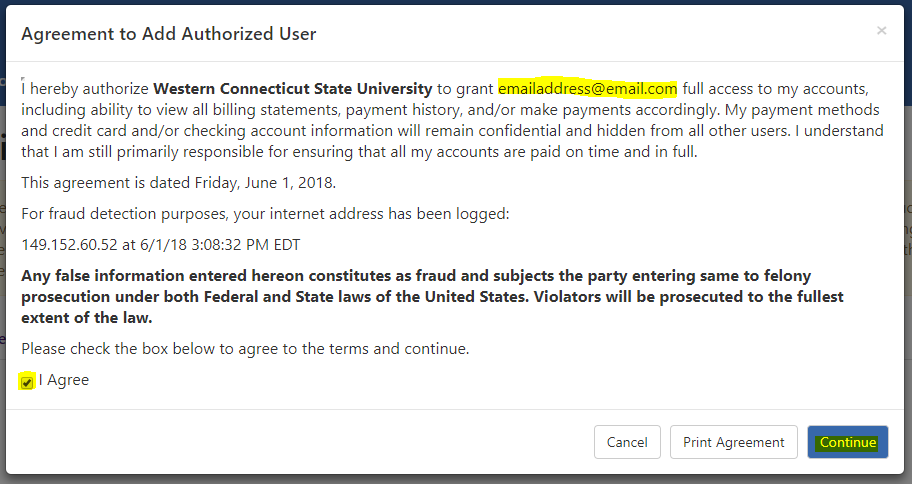
7) An email will be sent to the new authorized user with instructions on how to log in and view your billing and payment plan information. This person will log in using the email address you provided. (Please note that if the e-mail delivery fails for some reason, a notification may be sent to your email address on record).

You can see all authorized users under Full name.
Note – Your authorized payer account needs to be created by the student attending the University. After the account is created, if the authorized payer forgets their password, the student attending the university that setup the authorized payer account must go into their EZPay account and generate another password for the authorized payer. The IT department does not have access to reset authorized payer’s passwords. The student that created the Authorized Payer account is in full control.
For More Information
- Contact the Cashier’s Office by calling (203)837-8381, or by sending an email to cashiers@wcsu.edu
- This information is reiterated on the Cashier’s Webpage