
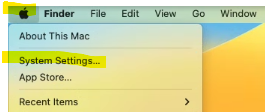
- To make any permission changes on your Mac the first things you will want to do is open system preferences.
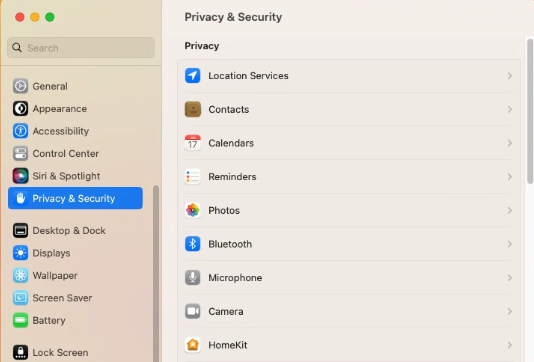
- Select the “Privacy and Security” settings.
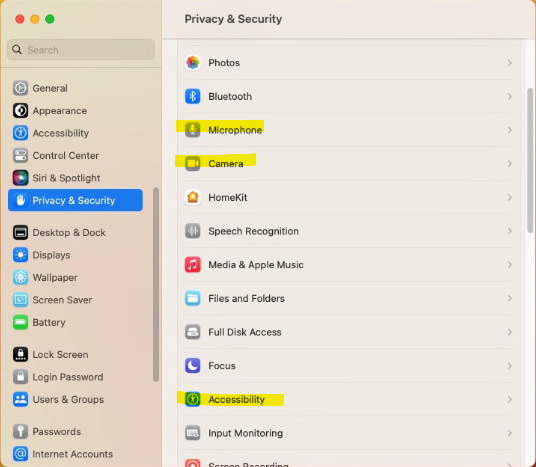
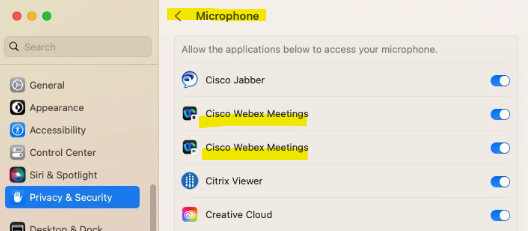
- You will need to make sure that “Cisco WebEx Meetings” is toggled to the right under the “Microphone”, “Camera”, and possibly “Accessibility” and “Screen Recording” as well.

Note: You may be prompted to enter your credentials when making these permissions changes. You want to enter the password for your MAC if prompted.
- After all WebEx permissions are enabled you will need to close and relaunch Cisco WebEx.